Writing8 min read
How I forked an open-source S3 management tool, added authentication, refreshed the UI, and made it production-ready with Docker.
My team and I rely heavily on S3-compatible object storage — Dell ECS, AWS S3, and a few other providers — for storing and retrieving data programmatically across multiple projects. The services themselves work great. What has always been a pain point, though, is browsing and managing those buckets through a decent UI.
For a long time, S3 Browser was our go-to desktop client. It gets the job done, but the free version limits you to a handful of bucket connections. Once you start working with multiple environments and multiple storage instances, you hit that wall pretty fast. Paying per seat for every team member just to browse a few files felt overkill.
Our next attempt was connecting IntelliJ IDEA to the S3 buckets using a plugin. That worked well — for the developers on the team. But here's the thing: not everyone on the team is a developer. QA engineers, Business Analysts, and other team members who needed occasional access to the buckets didn't have IntelliJ IDEA or any JetBrains IDE installed. Asking them to install a full-blown IDE just to browse some files was not a practical solution.
So we needed something that was:
While searching for alternatives, I came across cloudlena/s3manager — an open-source web GUI written in Go for managing S3 buckets from any provider. I spun it up, pointed it at our S3 bucket instance, and it worked exactly as advertised. List buckets, upload files, download objects, create new buckets — all from the browser. Clean and functional.
But after using it for a bit, I had two concerns:
This was the big one. The application had zero authentication out of the box. Anyone who knew the URL could access the entire thing — browse every bucket, download any object, even delete files. In any real deployment scenario, this is a significant security risk.
Think about it: you're essentially exposing your entire object storage — potentially containing sensitive data, configuration files, backups, or customer data — to anyone on the network. Even in an internal network, that's a risk you don't want to take. A simple login page might not be enterprise-grade security, but it's a critical first line of defense that prevents casual unauthorized access and makes the tool viable for team use.
This is more of a personal preference, but the existing UI was built with Materialize CSS and felt a bit outdated. Since I was going to fork the project anyway, I figured I might as well give it a visual refresh too.
So I created a fork at dimuthnc/s3manager and got to work — with a healthy dose of AI assistance, of course.
Here's what changed:
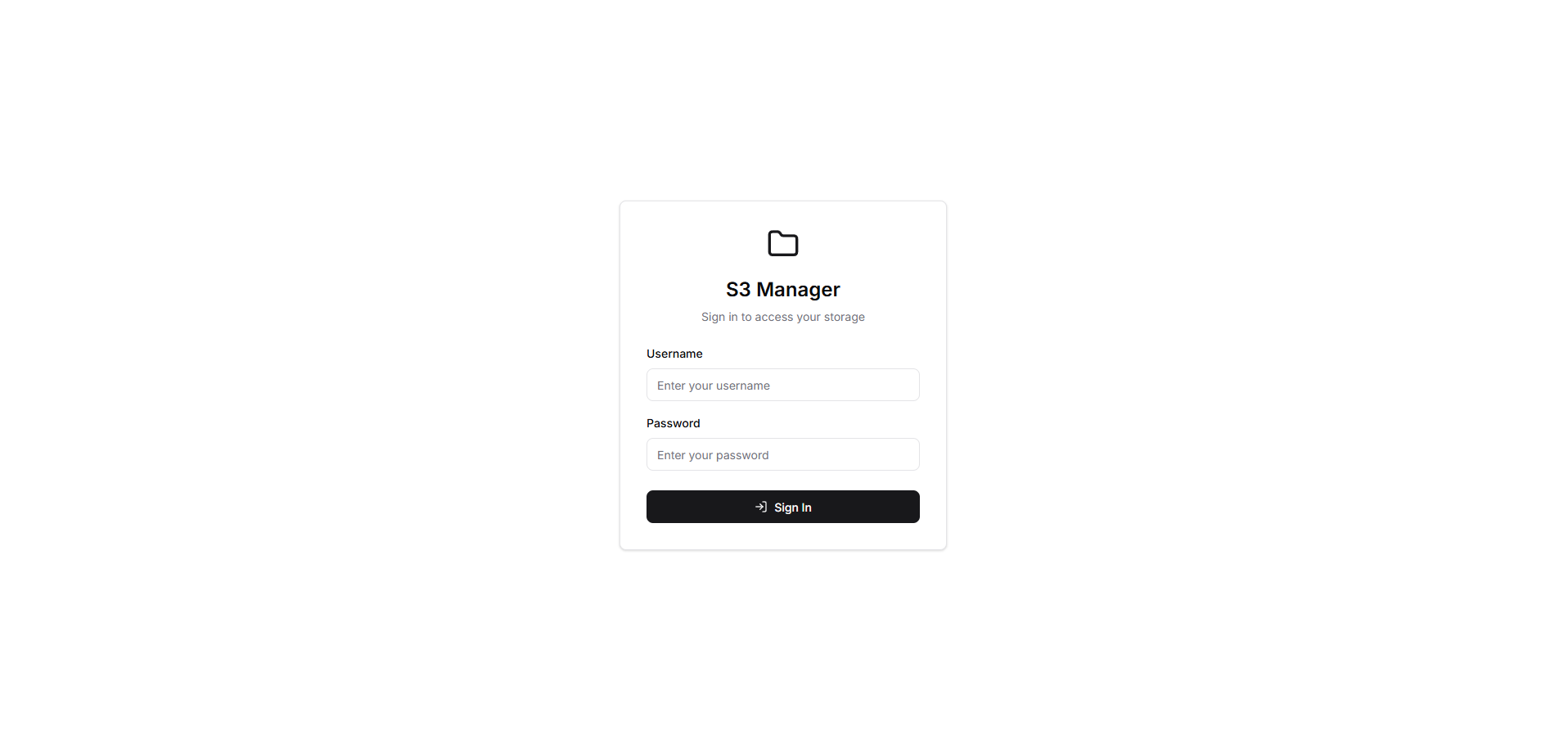
I added an opt-in authentication mechanism using two environment variables: USERNAME and PASSWORD. Both values are base64 encoded in the configuration to avoid storing plain-text credentials in Docker Compose files or environment configs.
When authentication is enabled:
HttpOnly, HMAC-signed cookie (s3manager_session)If you don't set USERNAME and PASSWORD, the app runs exactly as before — no login, no changes to existing behavior. Fully backward-compatible.
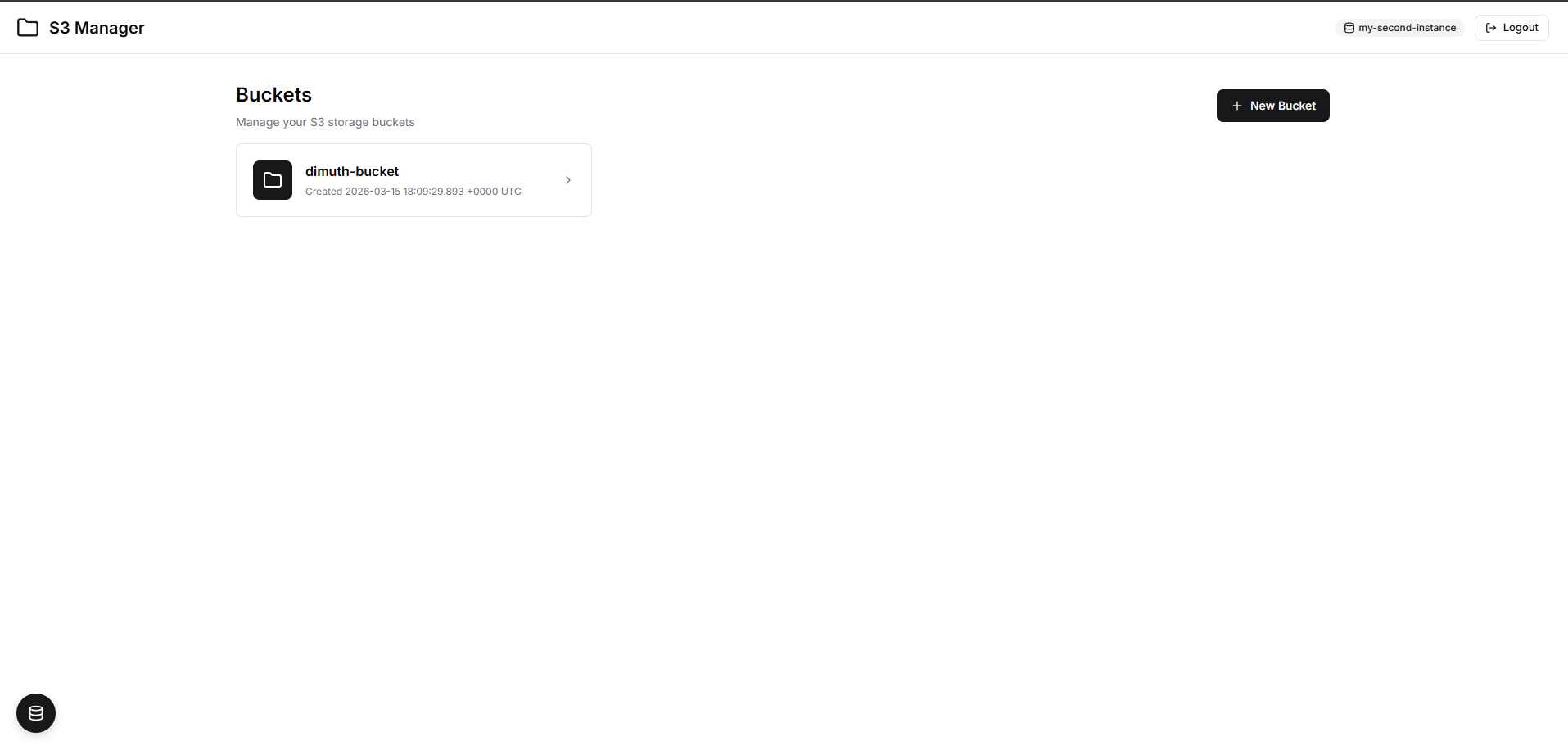
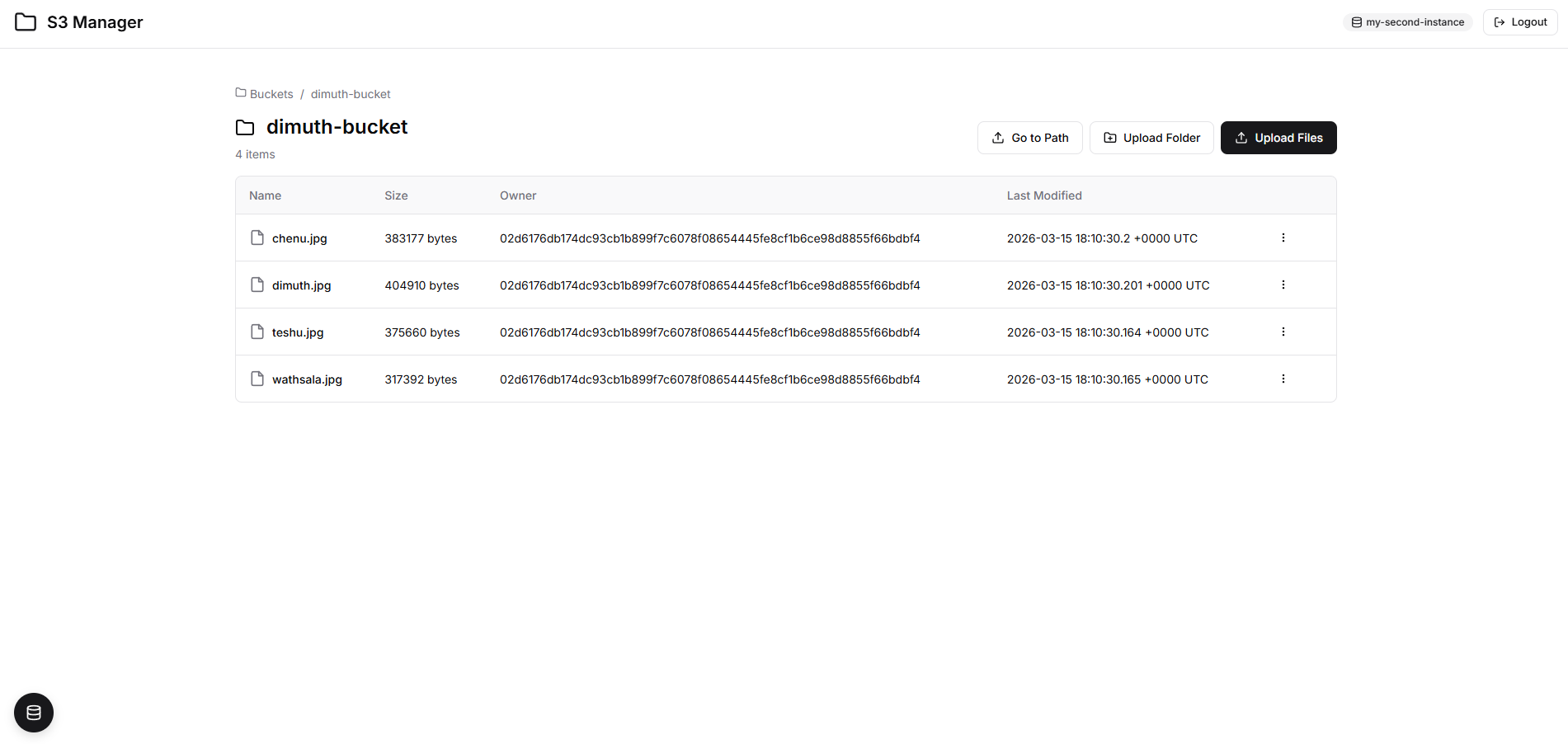
I replaced the Materialize CSS with a custom stylesheet based on shadcn/ui design principles. The result is a cleaner, more modern interface with improved modals, toast notifications, tables, and empty states. I also swapped the Material Icons font dependency for inline SVG icons, keeping the build lightweight.
Want to give it a try? Here's how to get it running.
Step 1: Clone the repository
git clone https://github.com/dimuthnc/s3manager.git
cd s3manager
Step 2: Build the Docker image
docker compose build
Step 3: Start the stack
docker compose up
This spins up the S3 Manager along with two MinIO instances for testing. The included docker-compose.yml looks like this:
services:
  s3manager:
    container_name: s3manager
    build: .
    ports:
      - 8080:8080
    environment:
      # Authentication (base64 encoded: admin / password)
      - USERNAME=YWRtaW4=
      - PASSWORD=cGFzc3dvcmQ=
      # S3 Instance 1: my-first-instance
      - 1_NAME=my-first-instance
      - 1_ENDPOINT=s3:9000
      - 1_ACCESS_KEY_ID=s3manager
      - 1_SECRET_ACCESS_KEY=s3manager
      - 1_USE_SSL=false
      # S3 Instance 2: my-second-instance
      - 2_NAME=my-second-instance
      - 2_ENDPOINT=s3-2:9000
      - 2_ACCESS_KEY_ID=s3manager2
      - 2_SECRET_ACCESS_KEY=s3manager2
      - 2_USE_SSL=false
    depends_on:
      - s3
      - s3-2
  s3:
    container_name: s3
    image: docker.io/minio/minio
    command: server /data
    ports:
      - 9000:9000
      - 9001:9001
    environment:
      - MINIO_ACCESS_KEY=s3manager
      - MINIO_SECRET_KEY=s3manager
      - MINIO_ADDRESS=0.0.0.0:9000
      - MINIO_CONSOLE_ADDRESS=0.0.0.0:9001
  s3-2:
    container_name: s3-2
    image: docker.io/minio/minio
    command: server /data
    ports:
      - 9002:9000
      - 9003:9001
    environment:
      - MINIO_ACCESS_KEY=s3manager2
      - MINIO_SECRET_KEY=s3manager2
      - MINIO_ADDRESS=0.0.0.0:9000
      - MINIO_CONSOLE_ADDRESS=0.0.0.0:9001
Step 4: Open your browser and navigate to http://localhost:8080. Login with admin / password.
If you already have an S3-compatible storage (AWS S3, MinIO, DigitalOcean Spaces, Backblaze B2, etc.), you can use the pre-built Docker image directly. Create a docker-compose.yml like this:
services:
  s3manager:
    image: dimuthnc/s3manager:latest
    container_name: s3manager
    ports:
      - "8080:8080"
    environment:
      # Authentication (base64 encoded)
      # To generate: echo -n "yourusername" | base64
      - USERNAME=eW91cnVzZXJuYW1l
      # To generate: echo -n "yoursecurepassword" | base64
      - PASSWORD=eW91cnNlY3VyZXBhc3N3b3Jk

      # S3 Instance Configuration
      - 1_NAME=production-storage
      - 1_ENDPOINT=s3.amazonaws.com
      - 1_REGION=us-east-1
      - 1_ACCESS_KEY_ID=AKIAIOSFODNN7EXAMPLE
      - 1_SECRET_ACCESS_KEY=wJalrXUtnFEMI/K7MDENG/bPxRfiCYEXAMPLEKEY
      - 1_USE_SSL=true

      # Optional: Add more instances
      # - 2_NAME=staging-minio
      # - 2_ENDPOINT=minio.internal.company.com:9000
      # - 2_ACCESS_KEY_ID=minioadmin
      # - 2_SECRET_ACCESS_KEY=minioadmin
      # - 2_USE_SSL=false
    restart: unless-stopped
Replace the placeholder values with your actual S3 credentials and endpoint. Then run:
docker compose up -d
Here's a quick reference of the key environment variables:
| Variable | Description |
|---|---|
USERNAME | Login username, base64 encoded. Auth is enabled only when both USERNAME and PASSWORD are set. |
PASSWORD | Login password, base64 encoded. |
N_NAME | Display name for S3 instance N (e.g., 1_NAME, 2_NAME) |
N_ENDPOINT | S3 endpoint for instance N |
N_ACCESS_KEY_ID | Access key for instance N |
N_SECRET_ACCESS_KEY | Secret key for instance N |
N_USE_SSL | Whether to use SSL for instance N (true/false) |
N_REGION | AWS region for instance N (optional) |
PORT | Port the app listens on (default: 8080) |
ALLOW_DELETE | Enable delete buttons (default: true) |
To generate base64-encoded values for your credentials:
echo -n "admin" | base64       # Output: YWRtaW4=
echo -n "mypassword" | base64  # Output: bXlwYXNzd29yZA==
The image is published on Docker Hub as dimuthnc/s3manager:
docker pull dimuthnc/s3manager:latest
| Tag | Description |
|---|---|
latest | Latest stable build |
v1.1.0 | Authentication support (login page, logout) |
v1.0.0 | Initial release with shadcn/ui redesign |
This is not a ground-up rewrite — it's a focused fork that adds the two things that were missing for our use case: a login page and a modern UI. The original cloudlena/s3manager project did the heavy lifting with a solid Go backend and S3 integration. I just built on top of it.
If you're looking for a lightweight, self-hosted web UI to manage your S3-compatible storage and want something that your entire team — developers and non-developers alike — can use from a browser, give dimuthnc/s3manager a try. Feel free to open issues or submit PRs if you have ideas for improvements.